Backing up Andriod Phone with ABD command prompt
Android Back Up
I was attempting to backup files from my Android Pixel 7 to an external hard drive via Windows UI and it was just taking too long. I figured I’d just use the command prompt. The only problem is that I couldn’t change directories to get to the phone storage. Searching on how to accomplish this I found an old but still valid post on android.stackexchange.com suggesting to use Android ADB command prompt to copy files.
Put Pixel 7 into Developer Mode
On the Pixel phone,
Got to Settings
About Phone
Click Build a number of times
I’m already in developer mode so I’m getting a prompt that says, “No need, you are already a developer”
Enable USB Debugging Mode - Google Pixel 7
Go to Settings > System > Developer Options
Turn on “Use developer options”
Turn USB debugging on
Tap Ok when prompted “Allow USB debugging?”
Plug in your Android phone via a USB cable
Download Andriod ADB
Head over to https://developer.android.com/tools/releases/platform-tools to Download SDK Platform-Tools for Windows. Extract the files from the downloaded zip file
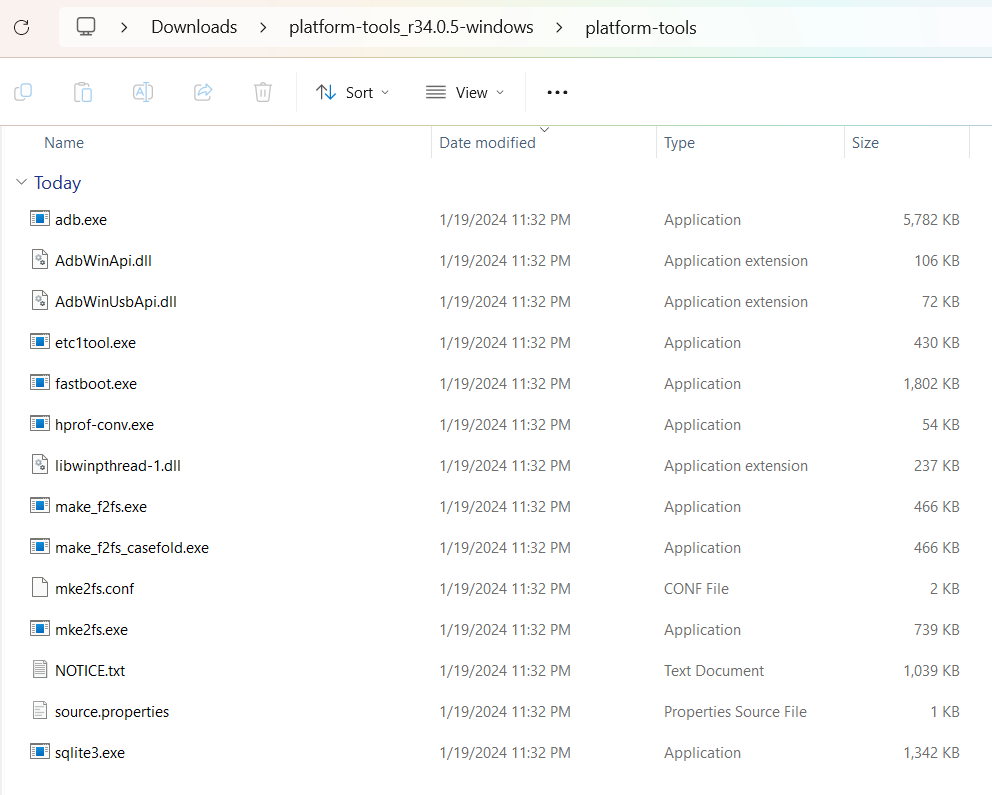
Type in “CMD” in the navigation bar to open the command prompt to the location of this folder
In the command prompt type in “adb devices”
>adb devices
* daemon not running; starting now at tcp:5037
* daemon started successfully
List of devices attached
My device is not showing. Let’s try a restart
After restart and running the command
>adb devices
* daemon not running; starting now at tcp:5037
* daemon started successfully
List of devices attached
71941FDH500G00  device
I also received a message on the phone saying
“Allow USB debugging?” with options to “Cancel” or “Allow”
I clicked “Allow”
We now can use the “adb shell” command which will allow us to gain access to enter commands interacting with the phone. Following it up with ls to list files on the phone:
>adb shell
cheetah:/ $ ls
acct    	config     	dev          	lost+found  oem      	second_stage_resources  system_ext
apex    	d          	etc          	metadata	postinstall  storage             	vendor
bin     	data       	init         	mnt     	proc     	sys                 	vendor_dlkm
bugreports  data_mirror	init.environ.rc  odm     	product  	system
cache   	debug_ramdisk  linkerconfig 	odm_dlkm	sdcard   	system_dlkm
Sdcard is the folder for internal storage so changing to the folder and listing out the files you can see what is on your phone:
cd sdcard/
cheetah:/sdcard $ ls
Alarms   Audiobooks  Documents  Movies  Notifications  Podcasts	Ringtones
Android  DCIM    	Download   Music   Pictures   	Recordings  X\ Air
cheetah:/sdcard $
Exit the adb shell by typing exit.
Using the adb command pull we can pull files off of the android devices to a location we desire on the windows machine
>adb pull sdcard/DCIM D:\PhoneBackup\DCIM
pull: building file list...
[ 12%] sdcard/DCIM/Camera/PXL_20221225_120933980.MP.jpg: 40%
Because I’m going from the phone to an external hard drive it may take a little longer but this is working out better than using the Windows interface. I was initially having issues copying the files over as Windows was timing out. I’m guessing this may only take an hour over the 5 hours Windows UI was estimating.